Capture guide · Polar · Wellue · ResMed · Abbott Lingo

Record the raw signal straight off your body.

Tepna reads files, not live sensors. Each device writes a plain file per night — Polar Sensor Logger for the heart straps, ViHealth for the oxygen ring, the SD card for your CPAP, the Lingo app for glucose. Set it once, wear it overnight, drop the files into the analyzer. Here are all four loops.

Heart · Oxygen · CPAP · Glucose No account, no cloud Files stay on your device Drop in & read
What you'll need

One app, one or two straps.

The app is the recorder. The Polar sensors are what it talks to over Bluetooth.

The recorder

Polar Sensor Logger

com.j_ware.polarsensorlogger

A community app that connects to any Polar Bluetooth sensor and logs the raw streams — ECG, PPG, heartbeats, motion — to text files on your phone. No Polar account, no Polar cloud. It just records.

by j-ware (Jukka Happonen) · Polar SDK 5.6.0 · free

Polar H10

chest strap · ECG

The most precise read — the heart's electrical beat, sample by sample. Feeds ECGDex.

Polar Verity Sense

armband · PPG / pulse

Optical pulse from the forearm — comfortable for sleep. Feeds PulseDex.

Any Android phone

runs the logger

Bluetooth on, phone near you through the night. That's the whole rig.

Supported hardware

The five devices Tepna reads today.

Consumer wearables and home devices you can buy off the shelf. Each records one signal cleanly to a file the analyzers understand.

Blood oxygen

Wellue O2Ring S

finger ring · overnight SpO₂ + pulse

A silicone ring that logs blood-oxygen, pulse and motion all night on its own memory — no phone needed while you sleep.

SpO₂ + pulseon-device memoryCSV / Binary export
Heart rhythm

Polar H10

chest strap · raw ECG

The reference-grade chest strap. Streams the heart's electrical beat sample by sample — the most precise signal in the suite.

ECG ~130 HzRR intervalsBluetooth LE
Optical pulse

Polar Verity Sense

arm / temple band · PPG

An optical sensor worn on the forearm or temple. Comfortable enough to sleep in, it reads pulse from the skin (PPG / PPI).
PPG opticalPPI intervalscomfortable for sleep
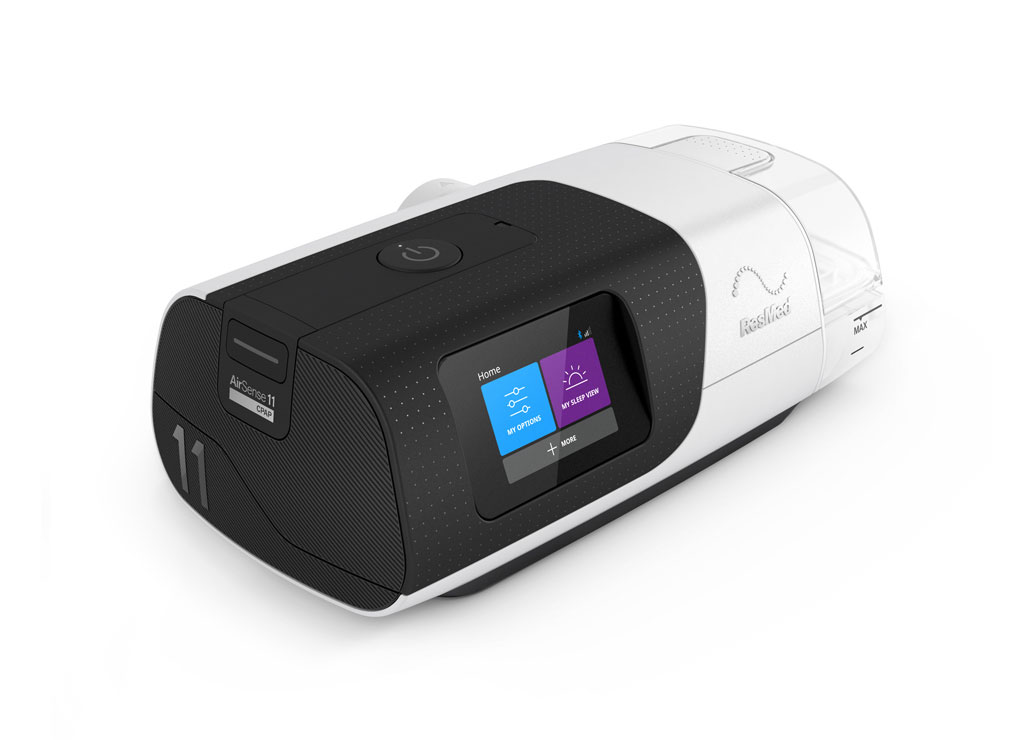
ResMed AirSense 11 CPAP machine, three-quarter view
Breathing & sleep

ResMed AirSense 11

CPAP machine · SD card EDF

A home CPAP that records the whole therapy night to its microSD card — flow, pressure, leak, scored events and optional oximetry — as a set of EDF files. No app needed.
flow + pressureevents + leakSD card EDF
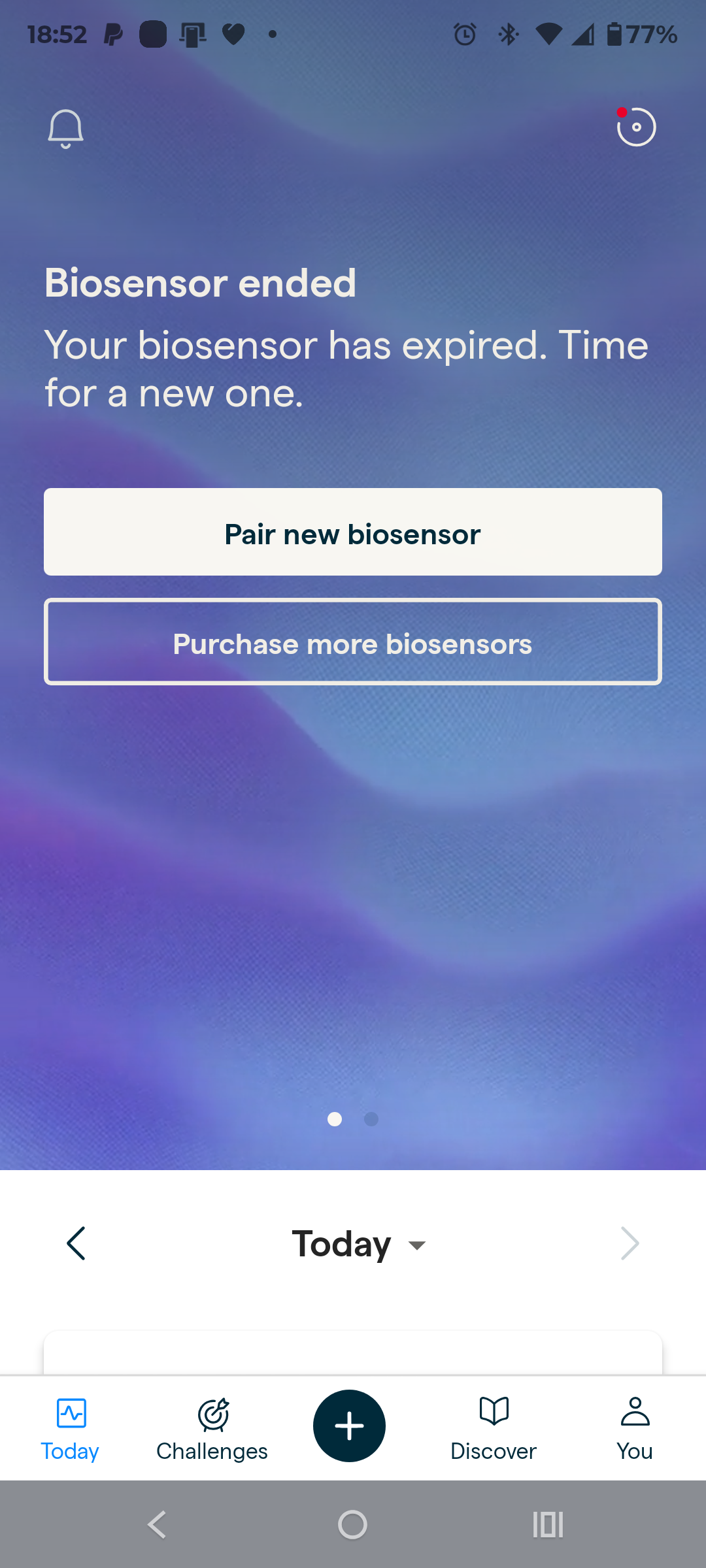
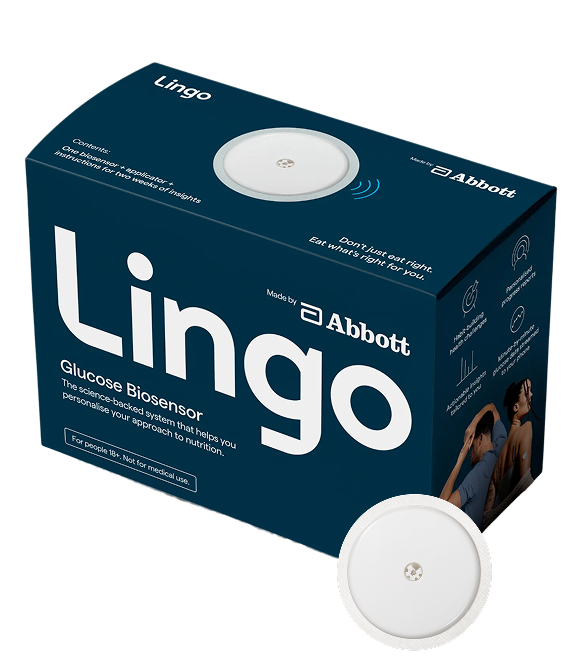
Abbott Lingo glucose biosensor box and sensor
Glucose

Abbott Lingo

arm biosensor · continuous glucose

An over-the-counter CGM worn on the upper arm. Logs glucose continuously to the Lingo app, which exports a plain CSV of every reading on demand.
continuous glucose14-day wearCSV export
Track 1 · Heart signals — Polar

From cold app to recording, step by step.

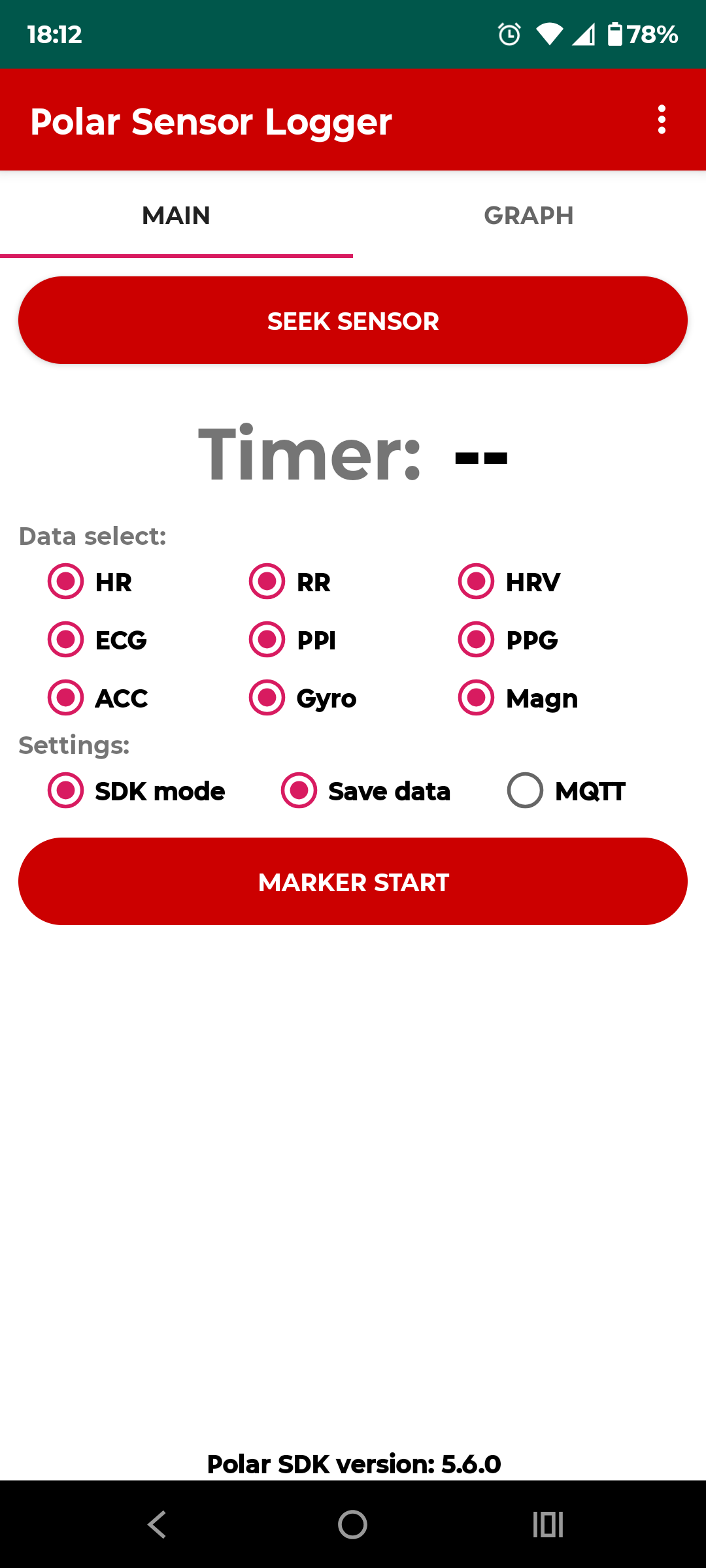
Real screens from the logger. Defaults are sane — you mostly tap through.

Polar Sensor Logger main screen with data streams and settings selected
STEP 01

Pick the signals to log

Open the app on the MAIN tab. Under Data select, tick the streams you want. For a full night, leave them all on — the analyzers ignore what they don't need.

Under Settings, switch on SDK mode and Save data. Leave MQTT off — that's for live network streaming, which Tepna doesn't use.

SDK mode onSave data onMQTT off
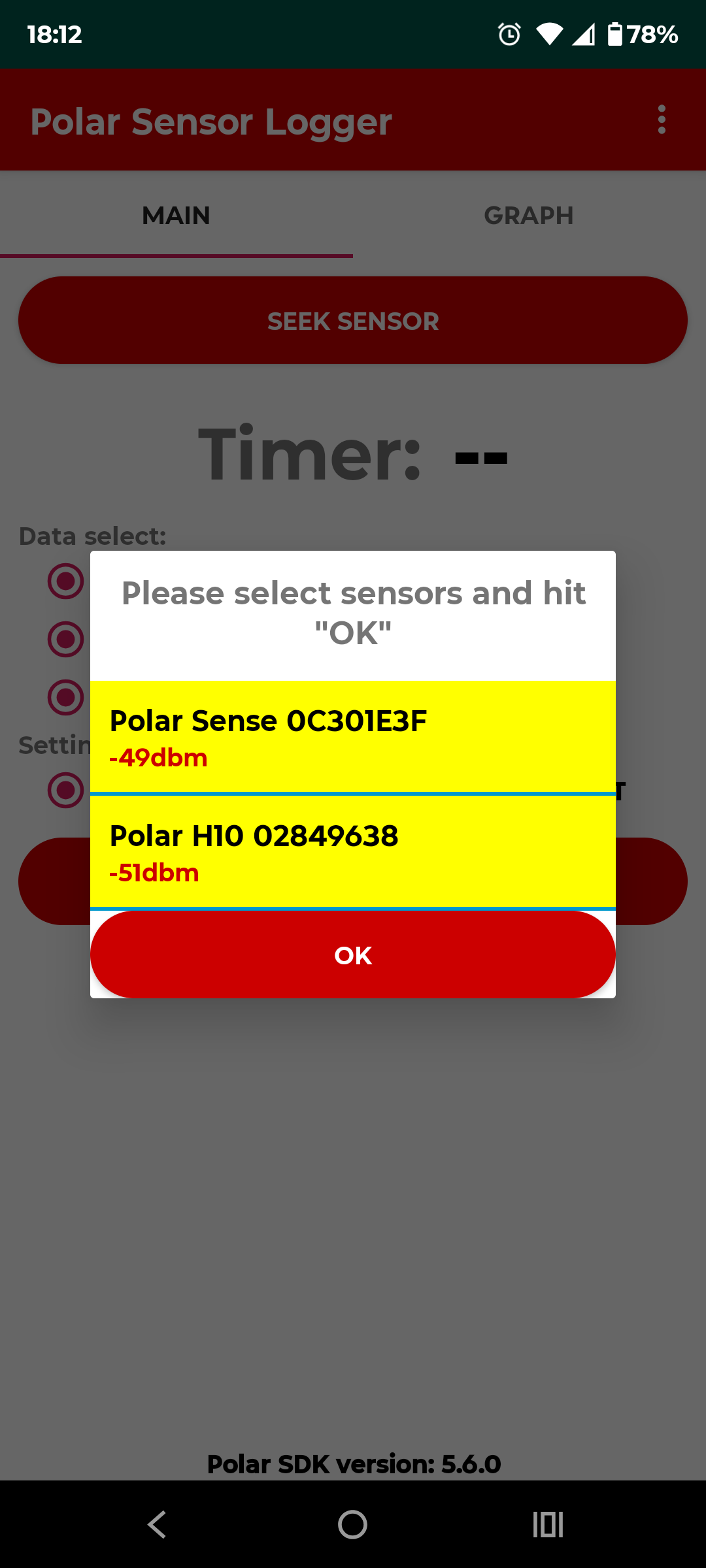
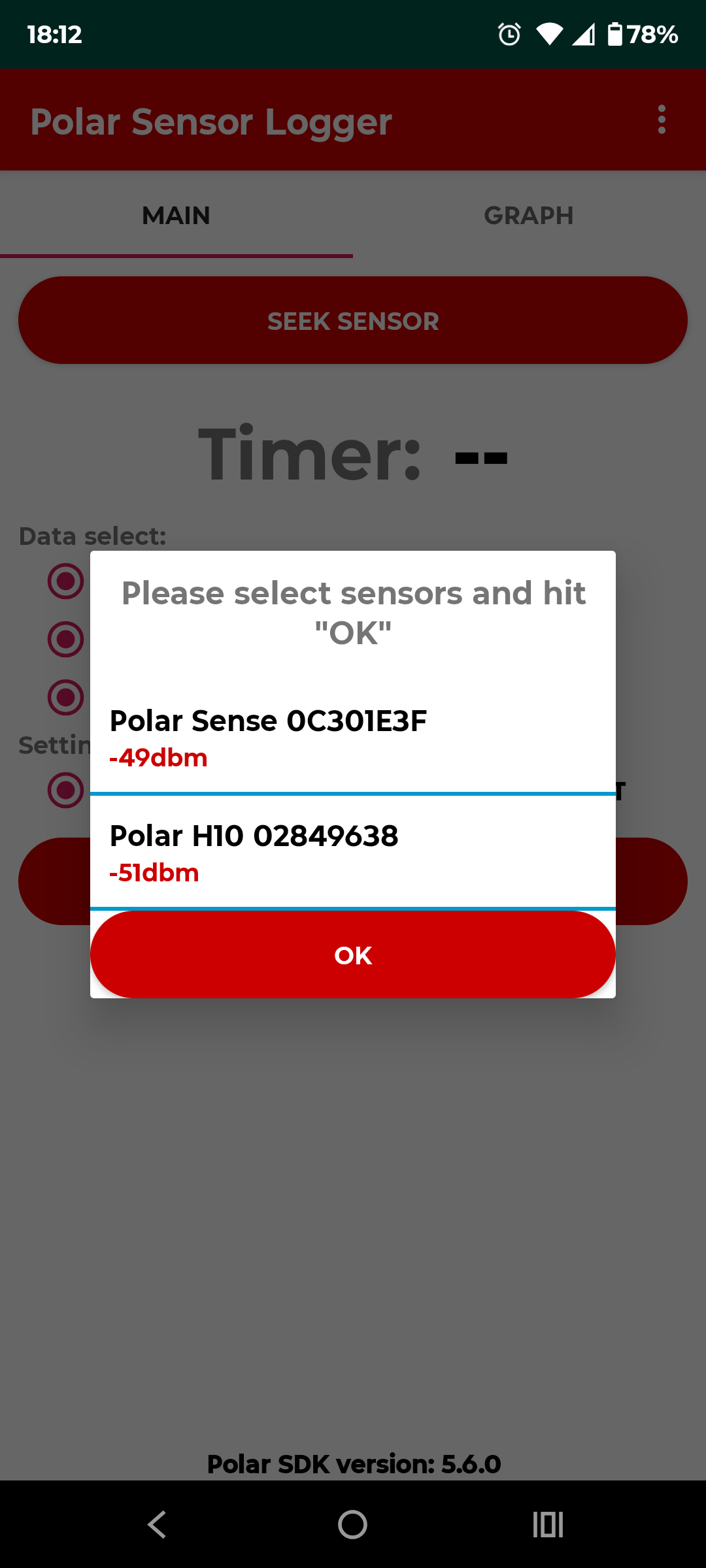
Seek sensor dialog listing nearby Polar devices with signal strength
STEP 02

Seek your sensors

Tap SEEK SENSOR. The app scans Bluetooth and lists every nearby Polar device with its signal strength — here a Polar Sense at −49 dBm and a Polar H10 at −51 dBm.

Closer to zero is stronger. If a strap doesn't appear, wet the H10 electrodes, make sure it's worn, and seek again.

Tip: You can record two sensors at once — e.g. H10 for ECG and Verity Sense for PPG — and line them up later by timestamp.
Both sensors highlighted yellow, ready to confirm with OK
STEP 03

Select and confirm

Tap each device you want so it highlights yellow, then hit OK. Selected sensors begin pairing.

Only tap the sensors you're actually wearing — an unselected strap is left alone and saves nothing.

tap → highlights yellowthen OK
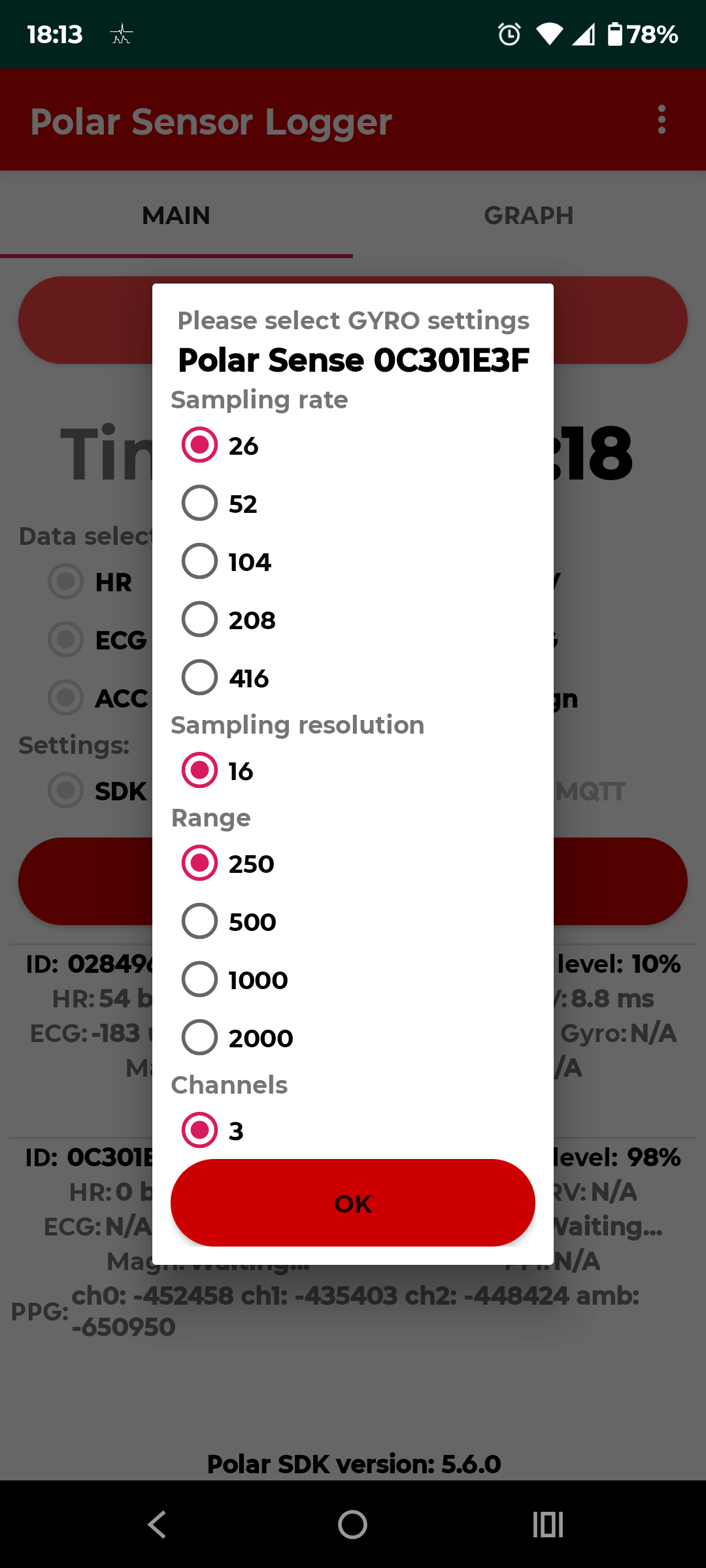
Per-stream settings dialog for the magnetometer with sampling rate and range
STEP 04

Accept the stream settings

For each motion stream you enabled — Gyro, Magnetometer, ACC — the app pops a settings dialog with sampling rate, resolution and range. The defaults are fine. Just tap OK to each.

You'll see one dialog per stream in turn. Keep tapping OK until they're done and the strap connects.

Don't sweat the numbers. Higher rates mean bigger files, not better Tepna scores. The defaults shown are what the analyzers expect.
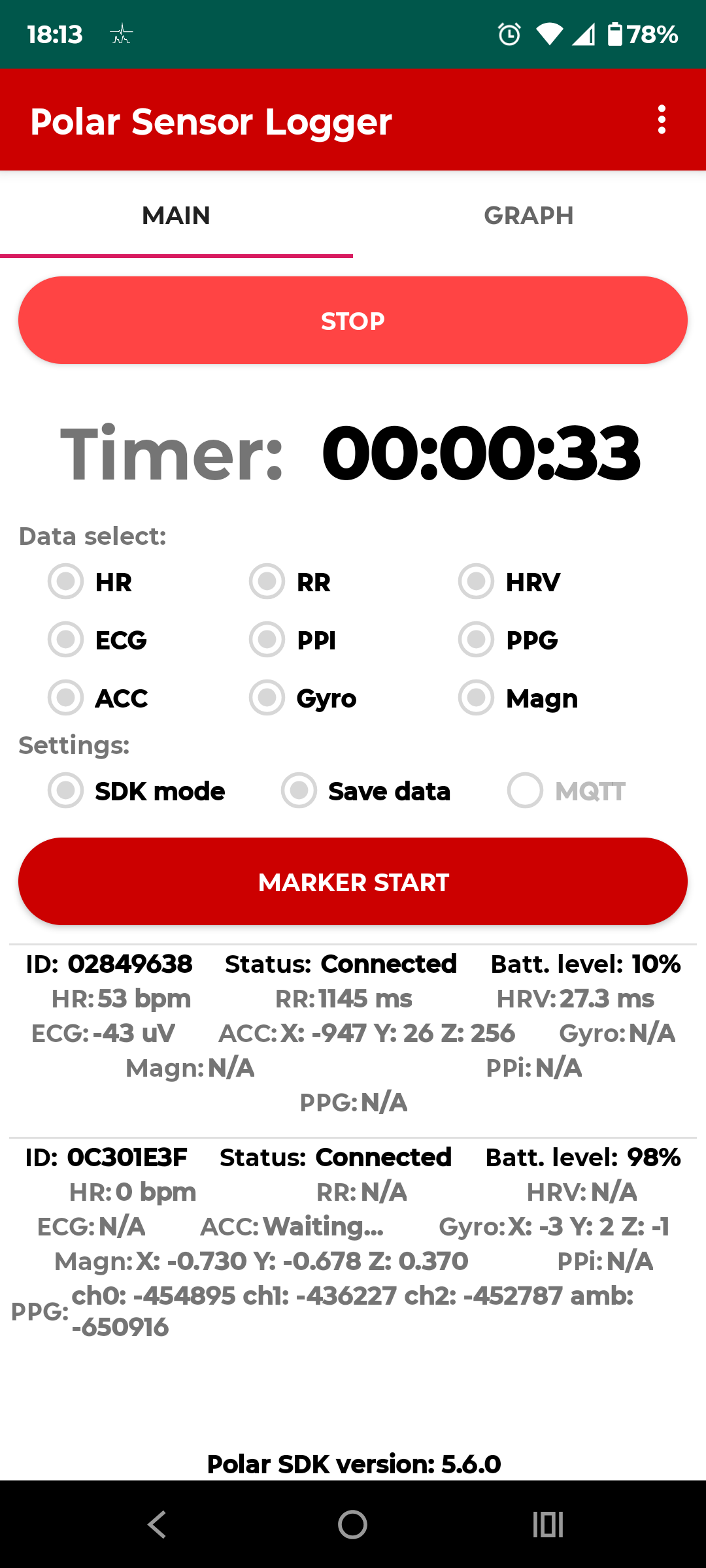
Recording in progress, timer counting, live values streaming from both sensors
STEP 05

It's recording

The button flips to STOP and the Timer starts counting. Each connected device shows live numbers — HR, ECG µV, RR, accelerometer, battery — so you can confirm both straps are streaming.

Now just go to sleep, or sit for your session. The phone keeps logging in the background as long as it's near you with Bluetooth on.

Status Connectedwatch Batt. levellive HR & ECG
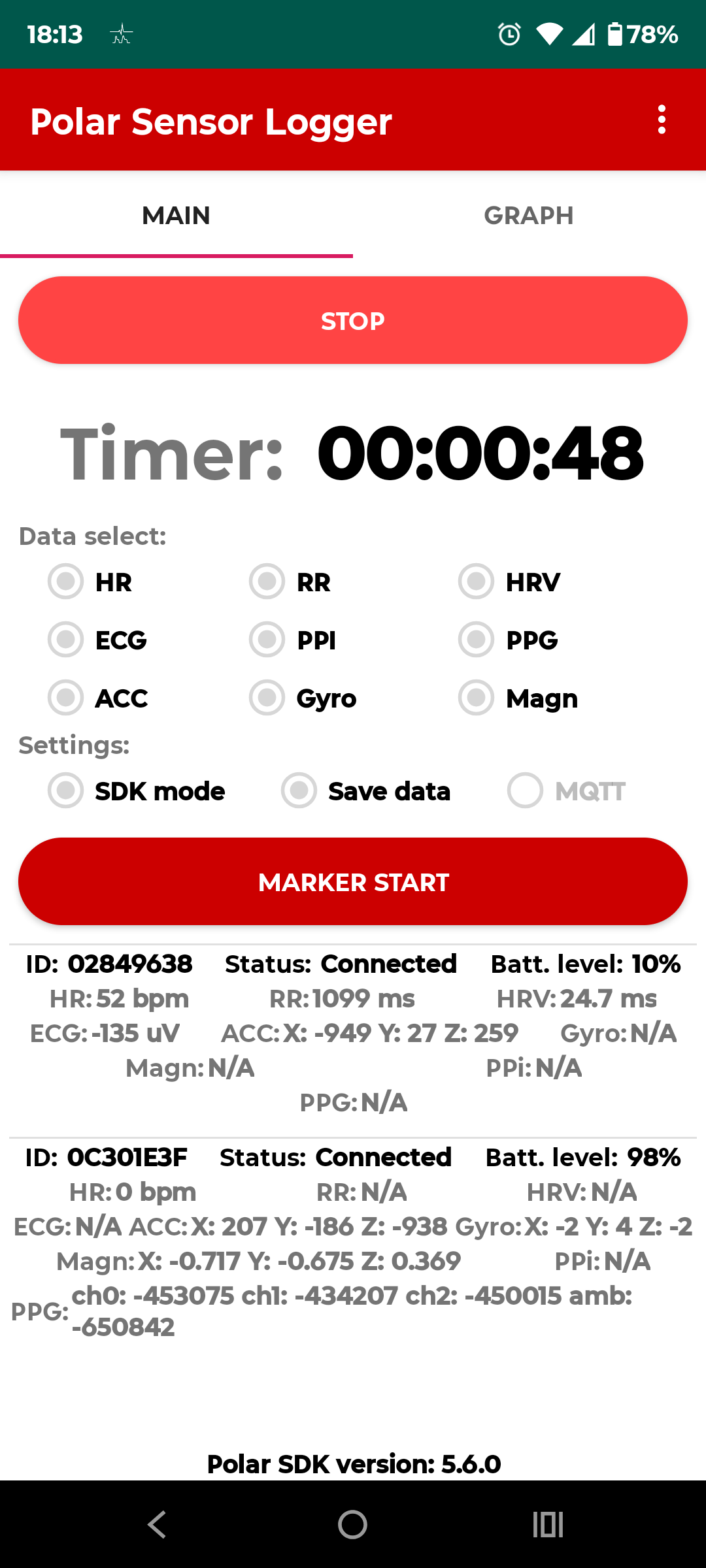
Recording still running with both sensors connected and streaming
STEP 06

Stop & the files are saved

In the morning, tap STOP. The logger closes the recording and writes one text file per stream into its folder on your phone — named by sensor, date and stream.

Long signals like ECG and PPG are split into numbered parts (part01of05). Keep every part — the analyzer stitches them back together.

One session = many files. That's normal. An H10 night gives you ECG parts, an RR file, an ACC file and an HR file — all from the same recording.
Track 2 · Blood oxygen — Wellue O2Ring

The oximeter records itself. You just sync it.

A different device with a different app. The O2Ring logs all night on its own memory — no phone, no Bluetooth babysitting. ViHealth pulls the night off it and hands you a CSV.

1

Install ViHealth

Get Viatom / Wellue's free ViHealth app from the Play Store. It's the bridge between the ring and your files — no account needed to export locally.

ViHealth on Google Play →
2

Wear it overnight

The ring records to its own memory all night — the phone can be anywhere. Charge it through the day, slip it on before bed.

3

Sync in the morning

Open ViHealth with the ring powered on — it auto-detects and downloads the night. If the ring has gone to sleep, replug the USB cable (or sensor) to wake it, then sync.

Then export the night — three taps in ViHealth
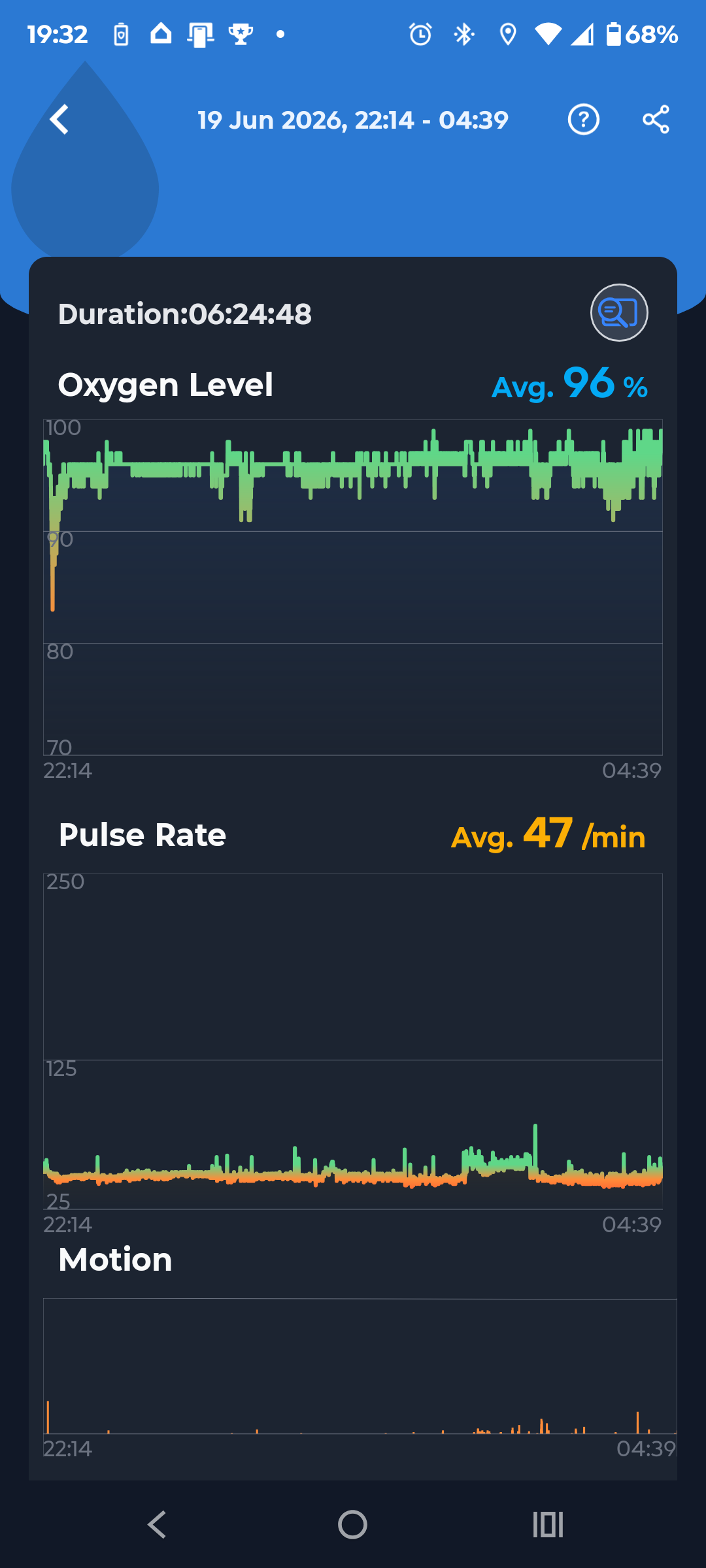
ViHealth session detail showing Oxygen Level, Pulse Rate and Motion graphs across the night
STEP 04

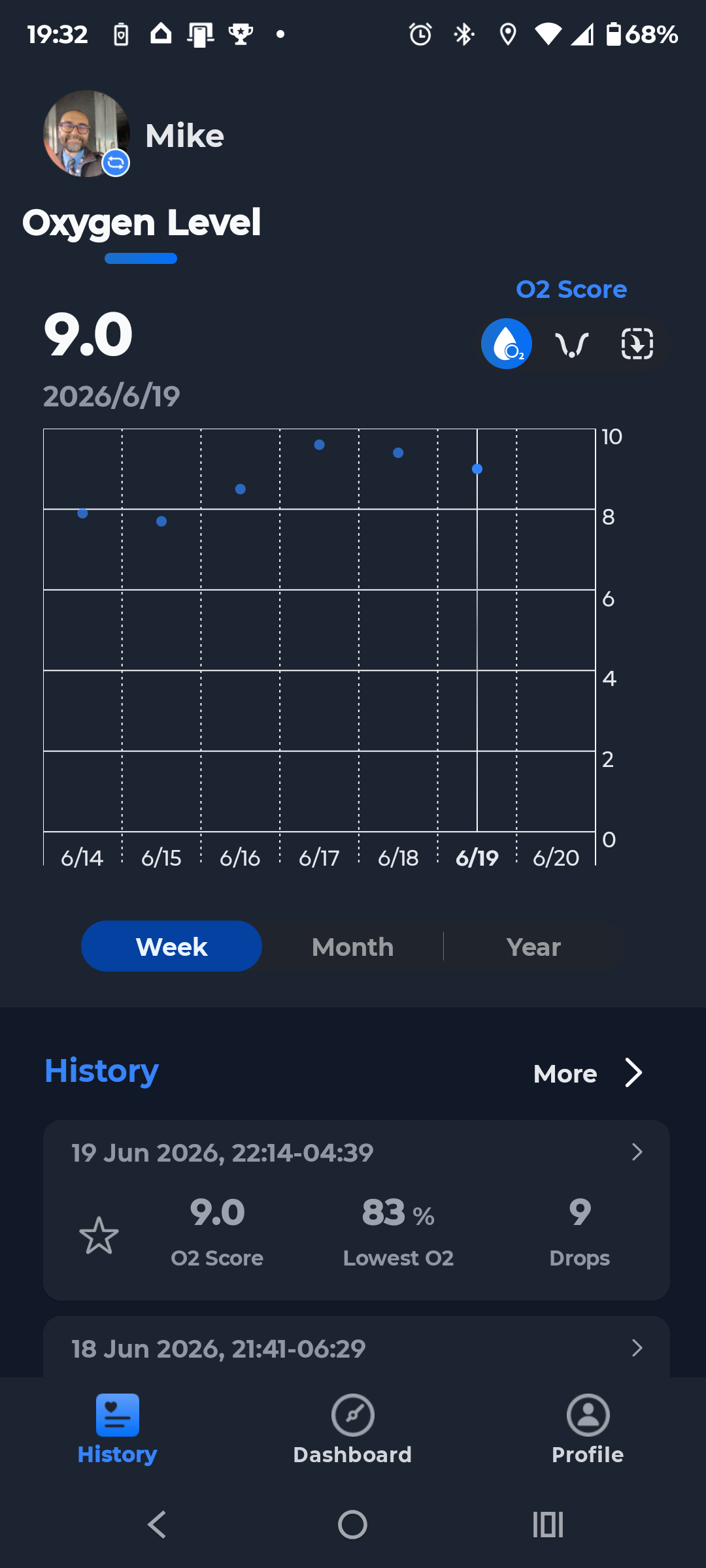
Find the night in History

On the History tab, each synced night is listed with its O2 Score, Lowest O₂ and number of Drops. Tap the session you want to open it.

tab: Historytap a night
ViHealth History tab listing recorded nights with O2 score, lowest O2 and drop count
STEP 05

Open it — that's what makes the file

The session view draws Oxygen Level, Pulse Rate and Motion across the whole night, with the duration and averages up top. Opening this view is what generates the exportable data — so always view the night before sharing.

SpO₂ · Pulse · Motionthen tap ↗ share
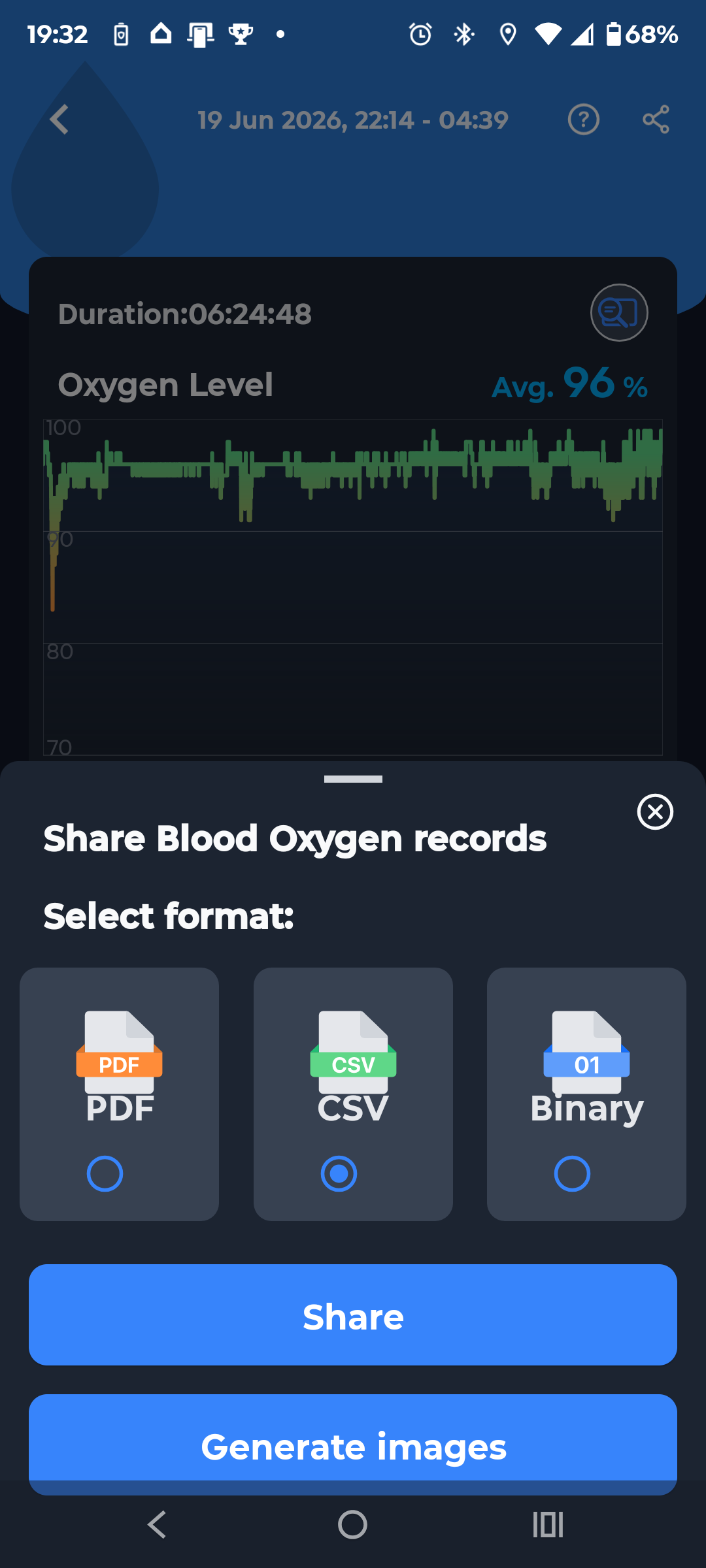
ViHealth Share Blood Oxygen records dialog with PDF, CSV and Binary format options, CSV selected
STEP 06

Share as CSV or Binary

The share sheet offers three formats — PDF, CSV and Binary. Pick CSV or Binary and tap Share, then send it to yourself (Drive, email, USB — wherever's easy to reach from your computer).

CSV or Binary both work. PDF is just a printed report — skip it. OxyDex reads the plain per-second CSV and the Binary export equally well.
Where ViHealth keeps the files on your phone
/sdcard/PulsebitO2/ /sdcard/Android/data/com.viatom.vihealth/files/ViHealth/ /Android/data/com.viatom.vihealth/files/<model#>/Host/ ← newer ViHealth

The <model#> folder — e.g. 11 — is your ring's model number, so yours may read differently.

No phone? Pull it straight onto a Windows PC
A

Install O2 Insight Pro

Download Viatom's free O2 Insight Pro desktop software and install it on your PC.

getwellue.com · PC software →
B

Connect by USB cable

Plug the ring into the PC with the cable that came with it — the software can't connect over Bluetooth. The window reads "Device connected" in the bottom-right.

C

Click Download

Hit Download and O2 Insight Pro copies every night off the ring into a per-serial folder, ready to drop into OxyDex.

Where O2 Insight Pro saves the files on Windows
C:\Users\<you>\AppData\Local\O2 Insight Pro\DATA\<SerialNumber>\

Each ring gets its own <SerialNumber> folder — handy when you track more than one device.

Either way, copy the CSVs to your computer (tip: name the folder with the ring's serial number to keep devices apart), then drop them into OxyDex — one night or many at once. Nothing uploads.

Open OxyDex →
Track 3 · Breathing & sleep — CPAP

Your CPAP already recorded the night. Pop the SD card.

No app, no Bluetooth. A ResMed AirSense / AirCurve writes the whole therapy night to the SD card in its side slot as a set of EDF files. Eject the card, read it on your computer, and drop the files into CPAPDex.

1

Power down & eject the card

Unplug the machine (or wait for the display to sleep), then press the microSD card in the side slot until it clicks and pops out. Ejecting while powered down keeps the night's files intact.

2

Read it on a computer

Slot the card into a microSD adapter and into your computer's card reader. It mounts like any USB drive — open it and find the DATALOG folder, with one subfolder per date.

3

Grab the night's EDF files

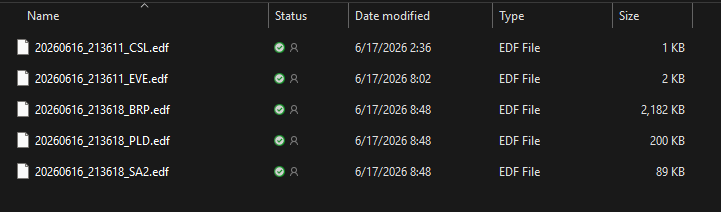
Each night is a small set of .edf files sharing one YYYYMMDD_HHMMSS_ prefix. Copy all of them together — CPAPDex lines them up by that shared timestamp.

…\DATALOG\20260616\
Windows folder listing five EDF files from one CPAP night: CSL, EVE, BRP, PLD and SA2, all sharing the 20260616 prefix
One night = up to five files, all sharing the 20260616_213… prefix. Sizes vary — the BRP waveform is the big one (~2 MB), the rest are small.
What each EDF file carries
_BRP
Breathing waveform

High-rate flow & pressure (~25 Hz). The biggest file — the raw breath-by-breath trace.

_PLD
Detail channels

Per-half-second pressure, leak, respiratory rate, tidal volume, minute ventilation, snore.

_EVE
Events

Scored apneas & hypopneas — the annotations behind your residual AHI.

_CSL
Periodic breathing

Cheyne–Stokes / periodic-breathing spans flagged across the night.

_SA2
Oximetry

SpO₂ + pulse, 1 Hz — only present if a ResMed oximeter was attached. Optional.

Copy the night's .edf set to your computer, then drop the whole set into CPAPDex at once — events, leak, pressure and oximetry land on one timeline. Loading is additive: drop more nights later and they stack into one history. You can also drop an OxyDex or ECGDex .json export alongside to corroborate the read. Nothing uploads.

Open CPAPDex →
Track 4 · Glucose — Abbott Lingo

Export your glucose CSV from the Lingo app.

Abbott's Lingo biosensor logs glucose to its app. Three taps inside the app generate a plain CSV of every reading — send it to yourself and drop it into GlucoDex.

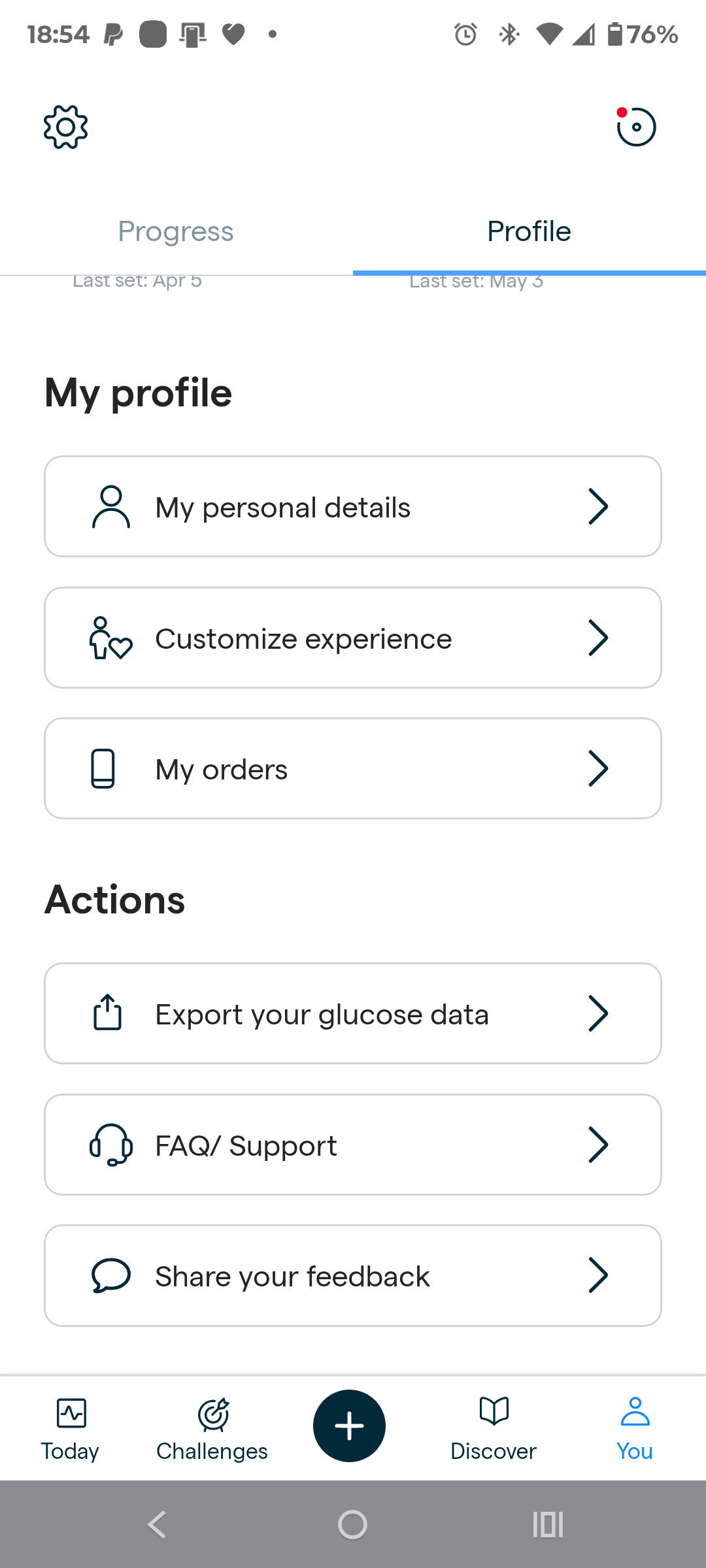
Lingo Profile tab showing the Actions list with Export your glucose data
STEP 01

Open You → Export your glucose data

Tap You in the bottom bar to reach your Profile. Scroll to Actions and tap Export your glucose data.

tab: YouActions → Export your glucose data
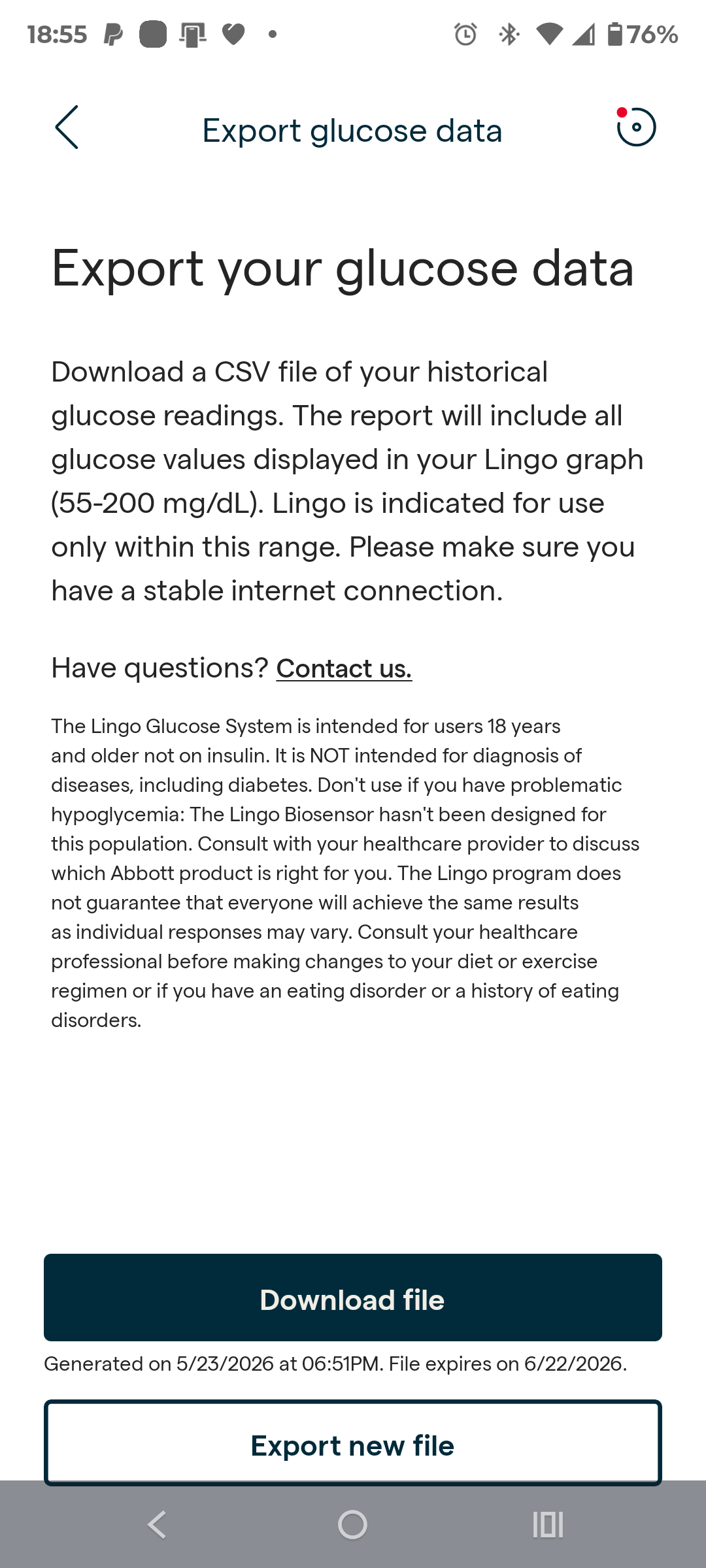
Lingo Export glucose data screen with Download file and Export new file buttons
STEP 02

Export a fresh file, then download it

Tap Export new file to build a current report, wait for it to generate, then tap Download file. Lingo exports every value in its graph range — 55–200 mg/dL.

Send the CSV to yourself however's easy — share to Drive, email, or save to Files.

Generated files expire. The screen shows a generated-on / expires-on date — if it's stale, just Export new file again before downloading.
The 55–200 mg/dL range is a hard clip. Lingo only exports values inside that band — readings below 55 or above 200 aren't in the file, so deep lows and high spikes read as flat at the limit. Time-below-range and severe-low metrics from a Lingo export under-count. Libre & Dexcom CSVs aren't clipped.
Lingo daily glucose graph across 24 hours with the in-range band
STEP 03

Drop the CSV into GlucoDex

The downloaded CSV holds a timestamp and a glucose value per reading — exactly what GlucoDex parses. Each import is additive: drop one export today and another next week and they stack into one multi-day history.

Not just Lingo. GlucoDex also reads FreeStyle Libre and Dexcom CSV exports — any CGM file with a time column and a mg/dL (or mmol/L) column.

Copy the CSV to your computer and drop it into GlucoDex — one export or many. It computes mean glucose, time-in-range, variability and AGP bands locally. Nothing uploads.

Open GlucoDex →
Which app reads what

Each file goes to one analyzer.

The stream you logged tells you which Tepna app to open. You don't need every stream — record what you have.

Logger stream
Recorded by
Open in Tepna
…_ECG_partNNofMM.txt
Polar H10 chest strap
…_PPG_partNNofMM.txt
Verity Sense / Polar Sense
…_RR.txt
H10 / Sense — beat intervals
…_PPI.txt
Verity Sense — pulse intervals
…_ACC.txt · _GYRO · _MAGN
on-board motion sensors
movement context · read alongside the signal above
…_HR.txt
any Polar sensor
quick heart-rate trace · supported everywhere
…_BRP · _PLD · _EVE · _CSL · _SA2 .edf
ResMed AirSense — SD card
glucose export .csv
Abbott Lingo / Libre / Dexcom

Welltory morning checks → HRVDex · O2Ring nights → OxyDex · CPAP SD card → CPAPDex · Lingo / CGM → GlucoDex

HRVDex builds up over time. Every import is additive — drop a Welltory CSV today and another next week, or many nights at once, and they stack into one multi-day table (exact duplicates are skipped, and your history is saved in the browser between visits). ECGDex also hands its HRV straight over: its ⬇ HRVDex export writes a Welltory-style CSV (all loaded nights in one file), and HRVDex reads ECGDex JSON exports too — so a whole H10 history lands in HRVDex in a single drop.

Getting files to Tepna

Move them over, drop them in.

Tepna runs in your browser and reads files locally — nothing uploads anywhere.

1

Copy off the device

However the signal was saved — the logger's phone folder, the ring's app, the CPAP's SD card, or the Lingo CSV download — move the files to your computer.

Polar_H10_AAAAAAAA_…_ECG_part01of05.txt
2

Open the matching analyzer

Open the Tepna app for that stream — ECGDex for ECG, PulseDex for pulse — right here in your browser.

3

Drop the files in

Drag the text files onto the analyzer — all parts together. It parses the night and gives you the read-out. Files never leave your device.

🔒

Recorded by you, read by you.

The logger writes to your phone. Tepna reads those files in your own browser and computes everything on-device. No account, no cloud, no server ever holds your signal.

100% on-deviceWorks offlineNo sign-upOpen & inspectable
Intended use & safety

Tepna computes biometric patterns from your wearable and sensor data to support personal self-quantification. It is not a medical device, does not diagnose, treat, cure, screen for, or prevent any disease or condition, and is not a substitute for professional clinical evaluation. It has not been reviewed or cleared by the FDA, CE, or any regulatory body. Always consult a qualified healthcare provider about your health. Use at your own risk. For research and personal use only. 100% local — no data leaves your device.

T Tepna physiological-signal suite
© 2026 Michal Planicka — Concept · Architecture · Algorithms Not a medical device · does not diagnose or treat · not FDA/CE cleared · research & personal use only · ◈ Made in Asheville, NC
licenceApache-2.0